Variables
In this chapter you are going to learn what are variables in Orchestra Manager and how to use them.
What is variable
Orchestra Manager’s Variables are a very powerful tool that helps you to manage a lot of settings and parameters within devices, compositions and fleets in Orchestra Manager. They are easily manageable, as they use a straightforward approach: there are 4 levels of variables Global, Composition, Fleet and Device, they are overriding each other respectively.
How do they override each other
Variables follow one simple rule: the most specific level wins. Orchestra checks four levels, from broadest to most specific: Global → Composition → Fleet → Device.
Example: the UPDATE variable controls how often devices send you updates.
Level |
Value |
Who ends up with this value |
|---|---|---|
Global |
|
All devices that no other level covers |
Composition |
|
Devices running this composition, outside the fleet below |
Fleet |
|
Devices in this fleet, except the specific device |
Device |
|
Only the specific device |
In short: each level overrides the one above it, so the test device reports every hour even though the global value is 24 hours.
Create a Global variable
Note
In order to check how to can create variables on other levels, check Composition, Fleet or Device chapters
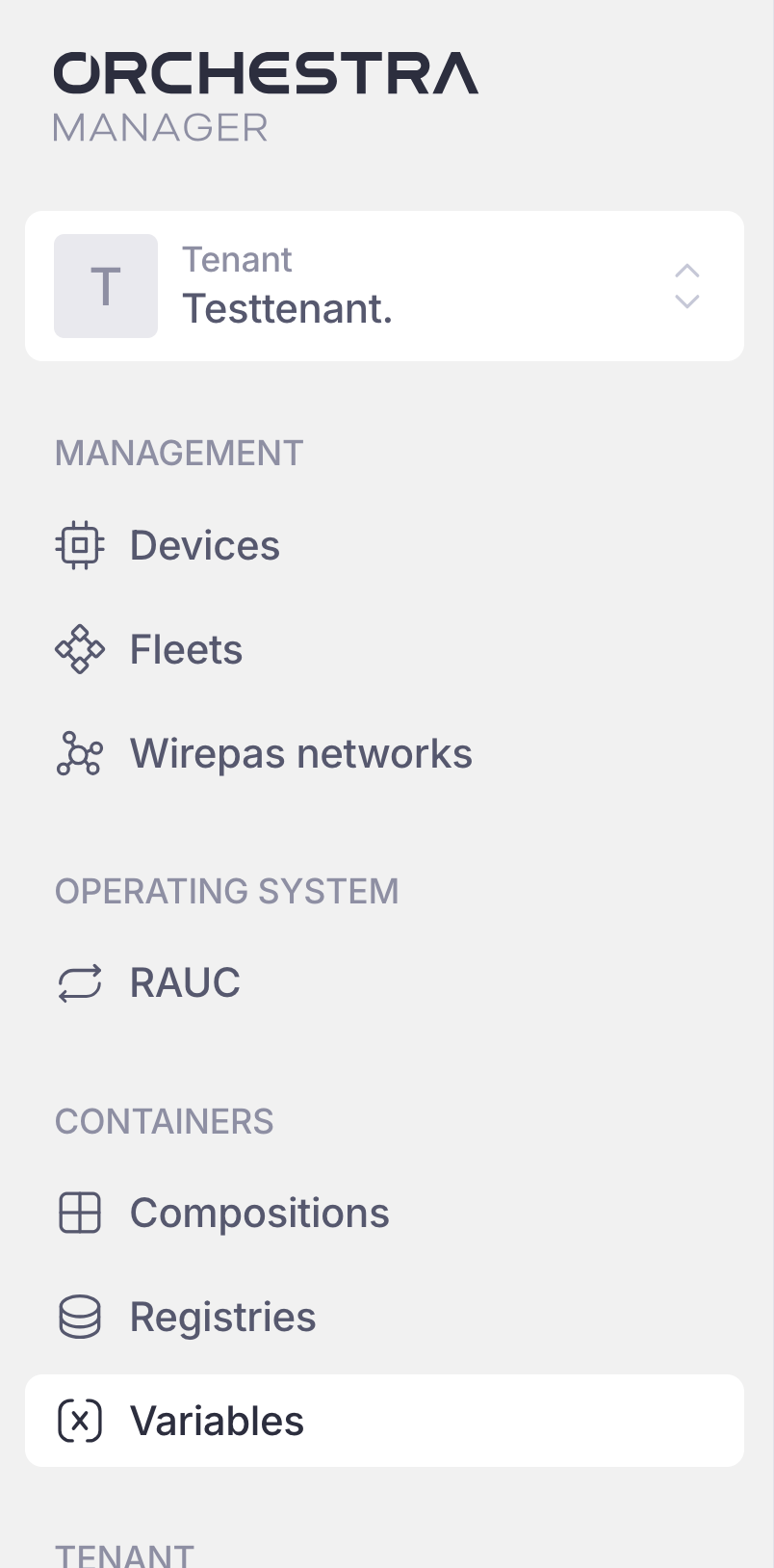
In order to create a variable you should go to the variables tab
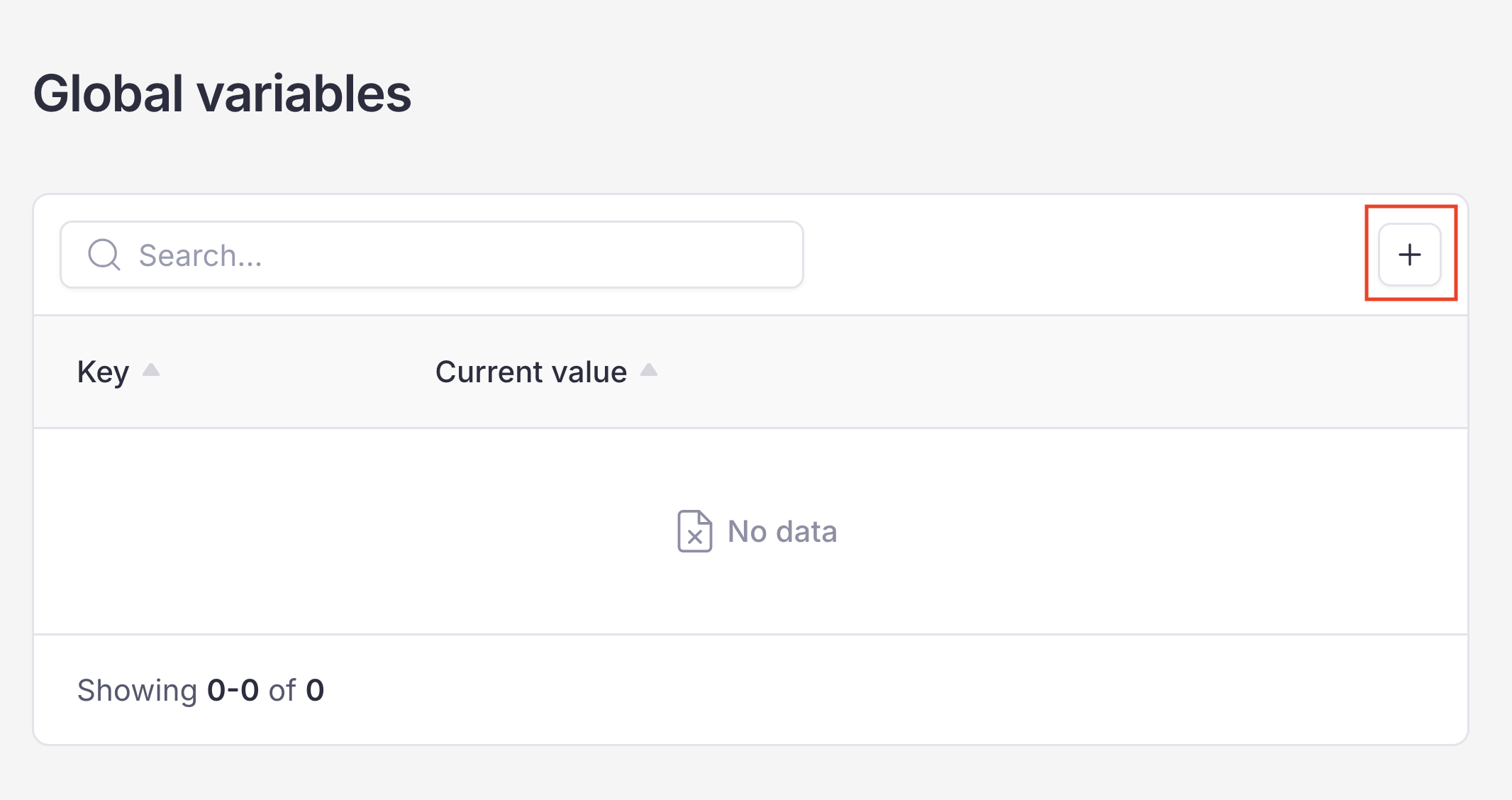
Find a "+" button in the Variables page
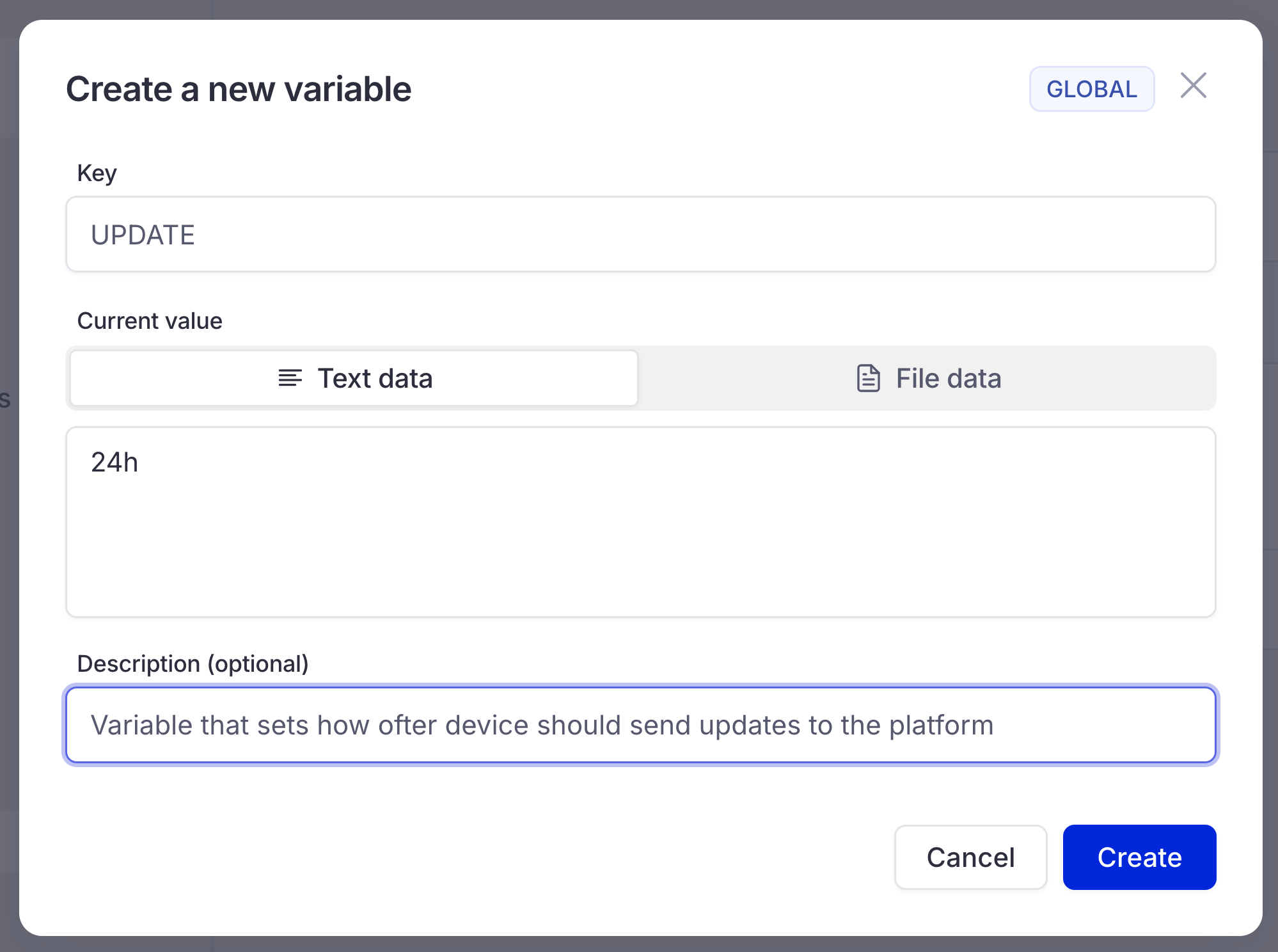
Specify variable’s Key, choose the type of value (text or file) and provide a it. After that, add a description. Note that descriptions are optional, but we recommend to provide variables with a clear description. At the end you will have something like this:
Changing and Deleting a Variable
In order to change or delete variable you simply need to click it in the list of variables. You will see this pop up:
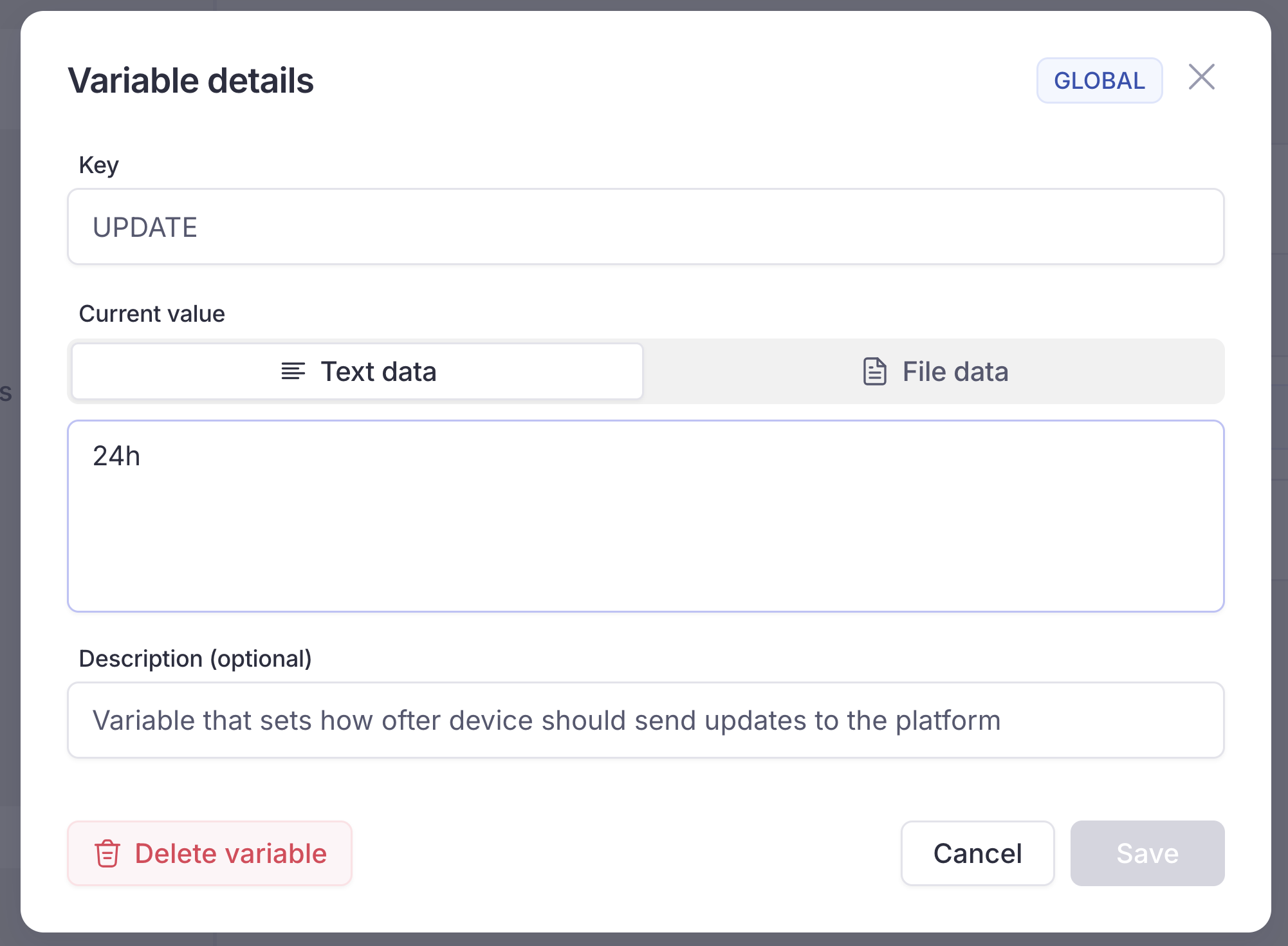
To delete the variable simply click Delete variable button.
If you want to change the name, value or description, everything that you need to do is change the value in the fields you want to be changed. After that press Save button.
Note
A new variable value reaches devices only after you restart the release